7 Easy Ways To Transfer WhatsApp Account To New Number – When moving WhatsApp to a new cellphone, we definitely want data such as chats and contacts not to be lost. Therefore we need to create a backup or backup file so that later it can be loaded back into the WhatsApp application on a new cellphone.

How To Transfer WhatsApp Account To New Number 2022
In this post, I will provide a brief tutorial on how we can move the WhatsApp application from an old cellphone to a new cellphone without losing chat and contacts many more.
Read more:
- How to Use Hashtags for Social Media Optimization
- Download Facebook Lite on Android and Windows 10
- Why Is My Facebook Account Locked or Disabled?
- How to Use WhatsApp Without Your Real Phone Number
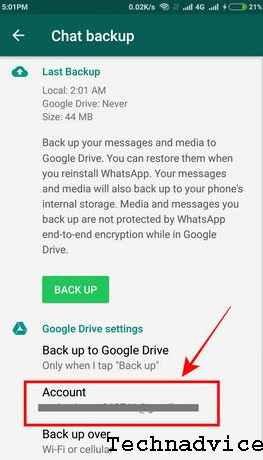
1. Connect WhatsApp on Old Mobile With Google Drive
The first thing we have to do is connect WhatsApp with a google account. The trick is to enter the Settings menu> Chats> Chat backup> Account. Login with your Google account, then select Allow.
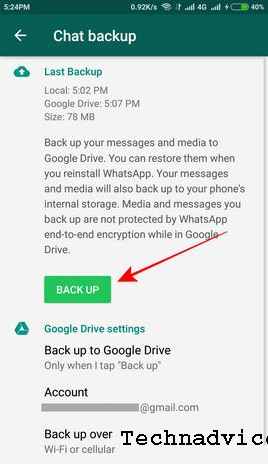
 2. Backup Chat
After WhatsApp on the old cellphone is connected to Google Drive. Just press BACK UP. Later automatically all messages on the old WA will be uploaded on Google Drive.
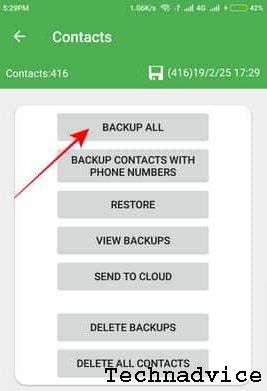
 3. Backup Contacts
Because we are going to move contacts from old cellphones to new cellphones too, then the contacts on the old cellphone must be backed up first. You can use the Super Backup & Restore application, it can be installed from the Playstore. After installing, run the application, and select Contacts> Backup All.
 4. Upload Contacts to Google Drive
Contacts that have been backed up using the Super Backup & Restore application can be uploaded directly to Google Drive. So later we can easily load it back on a new cellphone. Still in the Backup & Restore application, select Contacts> Send To Cloud> Select the contact file that was backed up earlier (file with a .vcf extension)> Send to Google Drive.
I asked permission to select allow.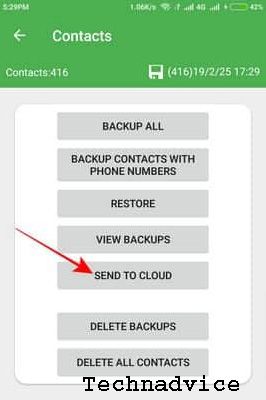
5. Install WhatsApp and Google Drive
6. Restore WhatsApp Chat on a New Mobile
7. Restore Contacts on New Mobile
Open the Google Drive application, then download the contact file that we backed up earlier. Open the file explorer on the cellphone where the downloaded contact file was stored, then press once to load the contact back into the new cellphone. Done.
If you have important chats on WhatsApp that you want to keep, then you can also do automatic backups regularly.
You do this by selecting Settings> Chats> Chat Bakcup> Backup to Google Drive> Select Weekly (weekly) or Monthly (monthly).
Conclusion:
So, friends, this is an explanation of 7 easy ways to transfer WhatsApp account to new Numbers. If there is an error on the cellphone then we already have a backup on Google Drive which we can easily restore.
Don’t forget to bookmark and always visit every day Technadvice.com because here you can find the latest Technology information such as How-to Guide Tips and Tricks Blogging Digital Marketing Windows Android Root Social Media games, ETC. Best of luck.
The post 7 Easy Ways To Transfer WhatsApp Account To New Number 2022 appeared first on Technadvice.
Comments
Post a Comment